Your Instagram profile acts just like a storefront for your online presence. The more organized, appealing, and complete your profile is, the faster visitors will build trust with your page. In this chapter, you will learn how to configure your basic account details, insert essential links, and build an engaging highlight showcase for your profile.
Chapter 2: Creating and Setting Up Your Profile
Lesson 4: Setting Basic Info and Sharing Your Page
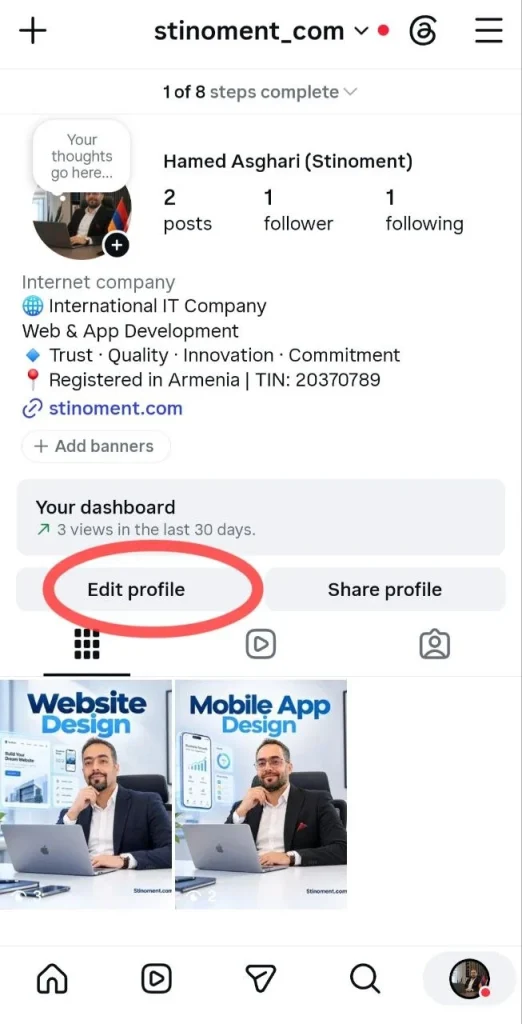
To begin configuring your settings, you first need to access your main profile screen. Look at the very bottom bar of your screen and tap the circular icon at the bottom corner displaying your profile picture or a person outline. This action opens your personal profile landing page where your posts and account details reside.
Changing Profile Photo, Name, and Bio
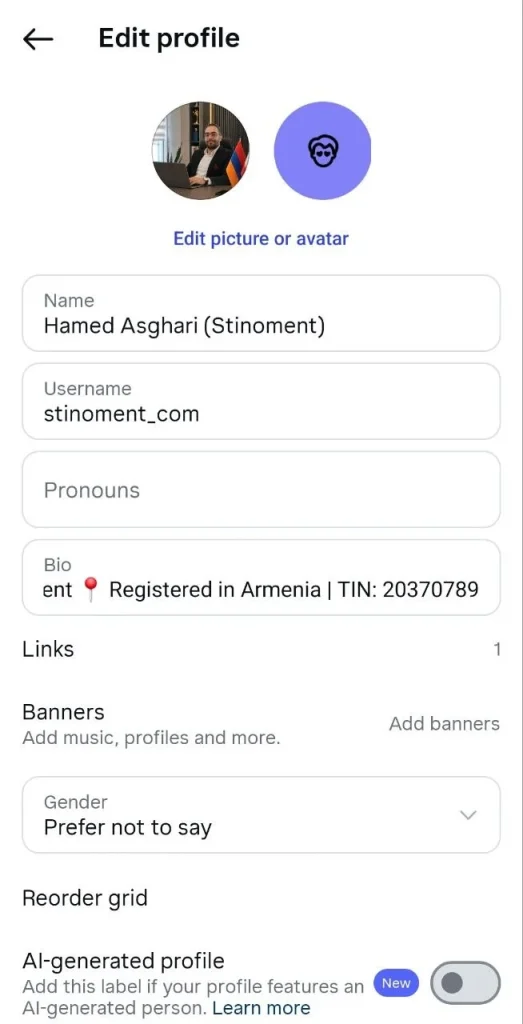
At the top of your profile page, locate the prominent button labeled Edit Profile. Tapping this button opens the main editing menu containing all your basic information. To update your profile image, tap Edit picture or avatar and select a fresh photo directly from your device gallery.
In the Name field, enter your full name or brand name so users can easily discover your account through search. In the Bio text box, write a concise and clear summary explaining what services you offer or what content you produce so visitors understand your page value instantly.
Adding Links (Websites or Channels) to Your Bio
If you own an external website, blog, or messaging channel, you can embed its destination link directly into your bio for one-tap access. To set this up, return to Edit Profile and tap the Links option. On the next screen, select Add external link.
Enter your full web address (URL) in the first field and assign a brief descriptive title in the second field. Finally, tap the checkmark or save button at the top to display the clickable link on your profile page.
Convert Profile Visitors into Business Sales: Directing bio traffic to a dedicated web destination yields maximum conversions. If your business requires custom Website Design or tailored Mobile Application Development to streamline sales, the expert development team at Stinoment (Stinoment.com) builds scalable digital platforms for your business growth.
Generating QR Code and Copying Profile Link to Share
When you want to share your profile address with friends or prospective clients, Instagram makes sharing simple. Open your main profile view and tap the Share Profile button situated right beside the edit button.
This action displays a customized QR Code that others can instantly scan using their phone camera to open your page. Additionally, at the bottom of the same view, tap Copy Link to save your exact account URL to your clipboard for easy messaging through external apps.
Lesson 5: Profile Showcase and Story Highlights
Once your basic account details are configured, you can organize your content showcase. Instagram provides tools like pinning posts and organizing highlights so your most important content stays permanently visible to new visitors.
Pinning Important Posts to Top of Profile (Pin)
If you have key publications—such as an introduction post, service overview, or contact information—you can anchor them at the top of your feed grid. Open the specific post you wish to highlight so it displays in full view.
Tap the three dots icon in the top right corner of the post and select Pin to your profile. This keeps the post permanently positioned at the very beginning of your feed grid. You can pin up to 3 essential posts to your profile top.
Creating Story Highlights, Editing Titles, and Adding Covers
Standard stories expire after 24 hours, but story highlights allow you to archive valuable story content permanently on your profile. On your main profile page beneath the edit buttons, locate the circular icon labeled New with a plus (+) sign.
Tap this icon, select the archived stories you wish to group together, and tap Next. Type a short, clear title for the highlight (such as Reviews, FAQ, or Pricing) and tap Edit Cover to select a clean, attractive cover image for the circular highlight icon.
Understanding Profile Navigation Tabs (Posts, Reels, and Tagged)
Directly above your post grid on your profile page, you will notice small navigation icons that categorize your media content. The first icon on the right is the Grid icon, which displays all standard photo and video feed posts.
The second icon is the Reels icon, which collects your short vertical Reels videos exclusively. The third icon, depicting a frame with a user outline, represents Tagged Posts—showing photos and videos published by other users where your account was tagged.
Final Tip: Completing your bio information and organizing neat story highlights gives your account a highly professional look, allowing visitors to immediately understand your content and brand value!
Leave a Reply