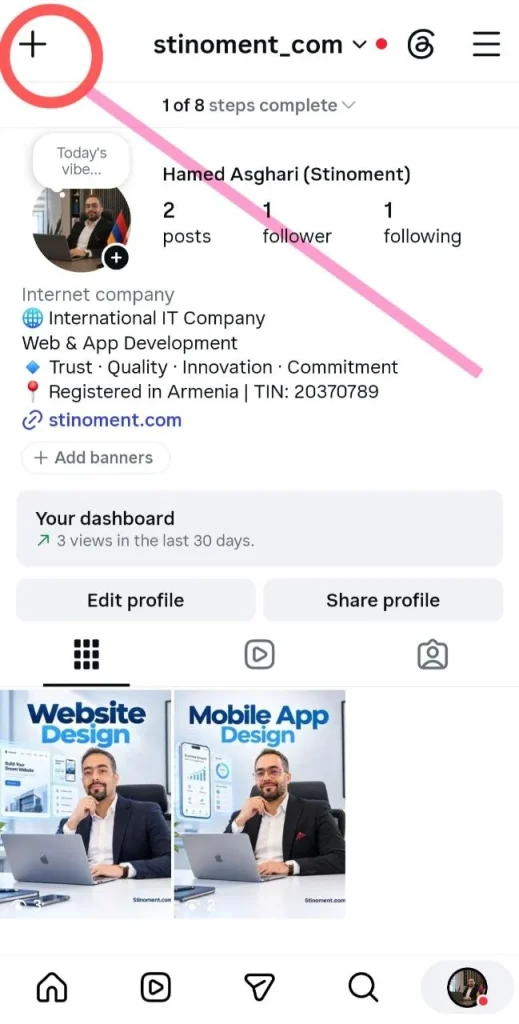
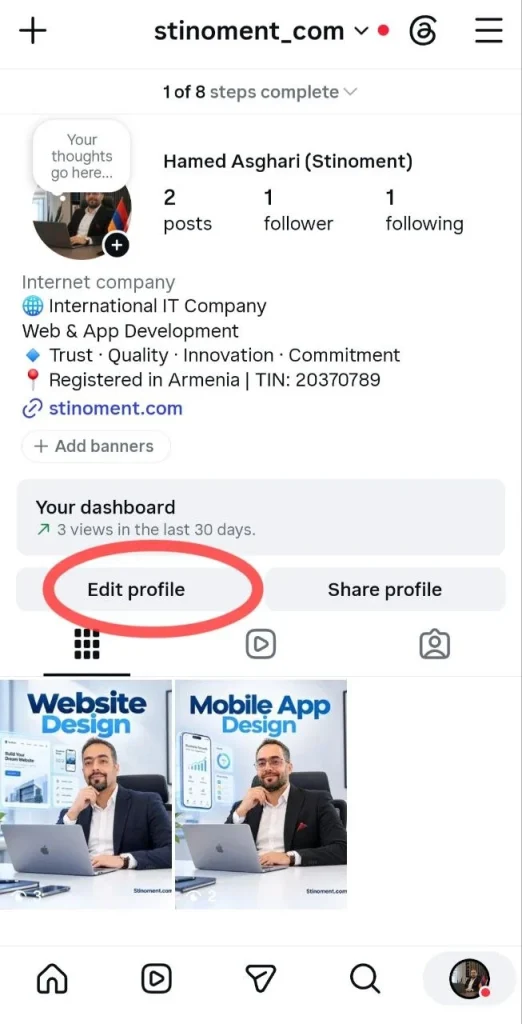
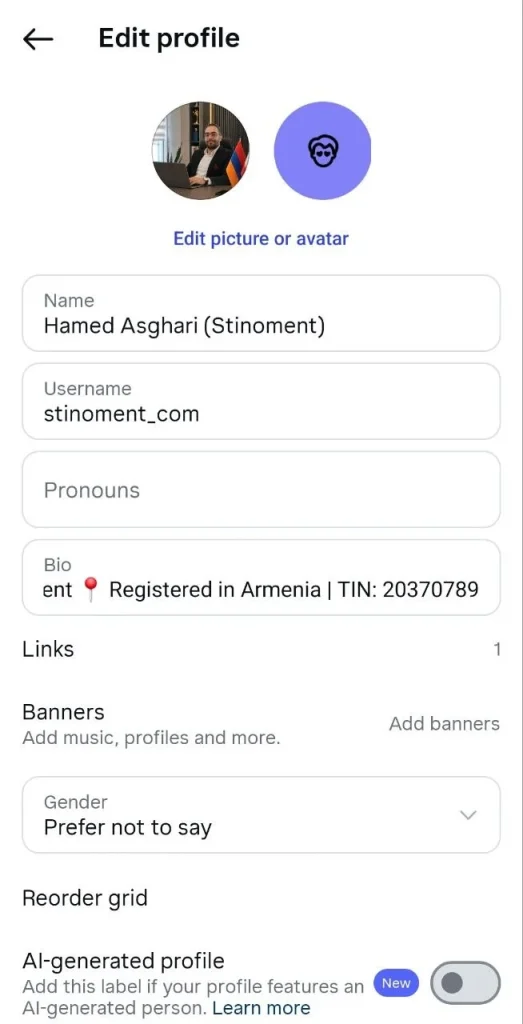
The Instagram settings menu provides comprehensive control over your account. From setting your account to private and managing unwanted users to fortifying security, checking activity logs, and converting your profile into a professional business account, everything is managed here. In this chapter, you will learn all essential settings and security workflows step-by-step.
Chapter 6: Settings, Security, Account Locking, and Business Profiles
Lesson 15: Account Locking and User Management
To prevent non-followers from viewing your posts and stories, you can make your account private. Go to your profile and tap the three-line menu icon in the top right corner. Select Settings and privacy, then navigate to Account privacy. Toggle on the Private account switch so only approved followers can access your content.
Blocking, Unfollowing, and Restricting Users
To restrict unwanted interactions, you have three options. To unfollow, open the user’s profile, tap the Following button, and select Unfollow. To completely block access, tap the three dots in the top right of their profile and select Block. To hide someone’s comments and move their messages to requests without notifying them, select Restrict from the same menu.
Lesson 16: Account Security and Anti-Hacking Controls
Securing your Instagram account is essential to prevent unauthorized access. Enabling Instagram security options ensures maximum protection for your profile and peace of mind.
Enabling Two-Factor Authentication (2FA)
The most effective step in account security is enabling two-factor authentication. Go to Profile > Three-line menu > Settings and privacy. Tap Accounts Center and select Password and security. Tap Two-factor authentication and choose either SMS or an authentication app to require a security code upon login.
🔐 Secure Your Instagram Account Now!
Click here to watch the full video tutorial on 2FA, backup codes, and checking active devices
Checking Active Logged-In Devices (Where You’re Logged In)
To verify which devices hold active sessions to your account, open Password and security within Accounts Center and select Where you’re logged in. Review the list of connected smartphones and computers. If you identify an unfamiliar device, tap it and select Log Out to immediately revoke access.
Lesson 17: Archive and Activity Logs
Instagram archives your historical posts and interactions while offering quality management settings to optimize your media uploads.
Viewing Past Stories and Posts in Archive
Expired stories automatically move to your archive. To view them, go to your profile, tap the three-line menu, and select Archive. Use the top dropdown menu to switch between Stories archive and Posts archive to access your previous content at any time.
Reviewing Past Likes and Comments (Your Activity)
To inspect your historical interactions, open the three-line menu on your profile and select Your activity. Tap Likes or Comments to review, manage, or remove any past likes or comment entries across the platform.
Enabling Highest Quality Uploads
If your media loses resolution upon posting, navigate to Settings and privacy from your profile menu. Scroll down to select Media quality and toggle on Upload at highest quality to ensure all future posts and stories publish at maximum resolution.
Lesson 18: Switching to a Business or Creator Account
Converting a personal profile to a professional account unlocks essential tools such as account analytics, contact buttons, and audience insights.
Switching to Professional Account and Adding Contact Buttons
Go to Settings and privacy from your profile menu, select Account type and tools, and tap Switch to professional account. Choose your business category and complete the setup. You can add your business phone number, email address, and location to activate direct contact buttons on your profile page.
Understanding Account Insights
Once converted, a Professional dashboard button appears on your profile. Tap it or select Insights to monitor total reach, top-performing posts and stories, follower demographics, and peak activity hours for your audience.
Establish Your Corporate Presence: Converting to a business account is only the first step. Build a solid digital foundation with custom Website Design and Mobile Application Development provided by Stinoment (Stinoment.com) to scale your business operations and sales channels globally.
Final Tip: Secure your account by turning on 2FA and regularly monitor Insights data to optimize your content strategy according to follower activity!