Blog

  • How to Turn Off Annoying Instagram Notifications: Likes, Lives, and Follows

    Simple Guide to Turning Off Annoying Instagram Notifications

    Does your phone constantly buzz with irrelevant notifications for every single like, live broadcast, or new follower? By default, Instagram enables push notifications for almost every interaction to keep you returning to the mobile app throughout the day.

    Fortunately, you can easily customize or disable these alerts in just a few taps. Whether you want to silence all alerts temporarily or mute specific annoyances like live video reminders, this guide walks you through the exact steps to regain control over your phone’s alerts.

    Step-by-Step Navigation to Instagram Notification Settings

    Follow these exact navigation steps within your Instagram mobile app to locate the primary notification controls:

    1. Open Your Profile: Tap your profile picture icon located in the bottom right corner of the app screen.
    2. Access Menu: Tap the three horizontal lines (hamburger menu) in the top right corner.
    3. Open Settings: Select Settings and activity from the options list.
    4. Select Notifications: Tap on Notifications near the top of the menu list.

    How to Mute or Customize Specific Alerts

    Once you are inside the Notifications panel, you have several options to tailor how and when Instagram alerts you:

    1. Pause All Notifications (Pause All): Toggle on the Pause all switch to temporarily block all push notifications for a set duration (ranging from 15 minutes up to 8 hours). This is ideal during meetings or quiet hours.

    2. Mute Likes and Comments (Posts, stories and comments): Tap this category and set Likes or Comments to Off so your phone stops ringing every time someone interacts with your posts.

    3. Disable Live Broadcast Alerts (Live and reels): To stop receiving alerts whenever account holders start a live video, open Live and reels and set Live Videos to Off.

    Strategic Advice for Businesses and Brands:

    For growing brands, managing customer inquiries through social media Direct Messages can become overwhelming and noisy. Establishing a dedicated, professionally engineered Website or custom Mobile Application by Stinoment allows your business to process customer requests and orders through structured, reliable channels without relying on cluttered social media notification feeds.

    Managing Direct Message and Request Notifications

    If you want to stay responsive to important customer inquiries while filtering out group chat noise, navigate to the Messages section under Notifications.

    Here, you can set Message Requests and Group Requests to Off, while keeping individual primary chat notifications active. This guarantees you never miss crucial direct messages while silencing spam calls and random group invites.
  • How to Reduce Instagram Data Usage: Turn Off Auto-Downloading Videos and Reels

    How to Reduce Instagram Data Usage and Stop Auto-Downloading Videos

    Have you noticed your cellular data package draining rapidly while browsing Instagram? This happens because Instagram automatically pre-loads videos, High-Definition Reels, and Stories in the background so they play instantly as you scroll.

    Even if you skip a video after just a second, the application has already consumed megabytes of mobile bandwidth downloading the full content. Fortunately, enabling a built-in feature called Data Saver Mode allows you to take control of your cellular consumption without compromising your experience.

    Why Does Instagram Consume So Much Cellular Data?

    Modern video formats, especially Reels and high-resolution video posts, carry significantly higher file sizes compared to standard images. By default, Instagram prioritizes maximum media quality over bandwidth conservation.

    This means the app continuously caches upcoming media whenever you are on cellular networks. Toggling off pre-loading does not restrict account functionality; it simply instructs the app to download media as needed rather than in advance.

    Step-by-Step Guide to Enable Data Saver Mode

    Follow these exact navigation steps within the Instagram mobile application to activate data saving settings:

    1. Open Your Profile: Launch Instagram and tap your profile picture icon in the bottom right corner.
    2. Access Menu: Tap the three horizontal lines (hamburger menu) located in the top right corner.
    3. Open Settings: Select Settings and activity from the options menu.
    4. Locate Media Settings: Scroll down to the Your app and media section and tap Data usage and media quality.
    5. Toggle Data Saver: Turn on the switch next to Use less cellular data.

    Once activated, Instagram will halt aggressive video pre-loading on mobile networks, noticeably extending the lifespan of your internet data plan.

    Strategic Growth Advice for Businesses:

    For business owners, relying solely on bandwidth-heavy social platforms can sometimes create friction for users with limited connectivity. Establishing an optimized, lightweight corporate Website or dedicated Mobile Application engineered by Stinoment ensures your potential customers can browse your product catalogs seamlessly and make purchases without consuming excessive mobile data.

    Understanding the High Quality Upload Setting

    On the same settings screen, you will notice a toggle labeled Upload at highest quality.

    If you manage a business profile or produce content, we recommend leaving this setting enabled. This ensures your uploaded photos and Reels maintain sharp visual fidelity for viewers, while your personal feed consumption remains bandwidth-efficient.

  • Avoiding Unofficial App Logins: The Ultimate Key to Protecting Your Instagram Account

    Why Unfollower and Analytics Apps Can Get Your Instagram Account Disabled

    Many Instagram users are curious to know who unfollowed them, who views their profile, or how their page is performing statistically. To find these details, people often download third-party tools such as unfollower trackers, ghost follower cleaners, or auto-liker bots. However, logging into these apps can put your entire profile at risk of permanent disabling.

    Meta (Instagram’s parent company) explicitly states in its terms of service that using third-party apps that require your Instagram login credentials is strictly prohibited. Instagram’s automated security systems actively detect unauthorized logins from unapproved servers, often resulting in temporary locks or permanent account suspensions.

    Which Apps Pose the Highest Risk to Your Account?

    Any application or website that prompts you to enter your Instagram username and password poses a severe threat to your profile security. The most common risky app categories include:

    • Unfollower and Follower Trackers: Applications designed to list accounts that have unfollowed you or haven’t followed you back.
    • Profile Viewer & Stalker Tools: Apps claiming to show who recently visited or interacted with your profile.
    • Automated Engagement Bots: Tools that send mass direct messages, auto-comment, or auto-follow/unfollow on your behalf.
    • Uncertified Third-Party Analytics Tools: Advanced reporting tools that access Instagram’s API without official Meta authorization.

    When you submit your login credentials into these platforms, your sensitive password data is stored on external, unverified servers. This not only violates platform guidelines but also exposes your account to security breaches and unauthorized access.

    Strategic Growth & Security Advice for Businesses:

    Unplanned account disablements highlight the vulnerability of relying exclusively on social media platforms for customer engagement. Establishing an independent digital infrastructure, such as a custom Website or a dedicated Mobile Application engineered by Stinoment, ensures uninterrupted operations and protects your sales pipeline from third-party policy changes.

    Are Apps That Do Not Require Login Safe?

    Simply put, tools and websites that do not request your Instagram username or password are entirely safe to use.

    Because these web tools operate purely on publicly accessible data, they have no direct authorization to access your private account token. As long as an app does not ask you to log in with your Instagram account, there is no risk of account restriction or suspension.

    How to Protect Your Account If You Have Already Logged Into an App

    If you currently have an unfollower app installed or have logged into one in the past, take these steps immediately to secure your account:

    1. Log out immediately from the third-party application and uninstall it from your device.
    2. Change your Instagram password immediately. Changing your password revokes all active session tokens associated with external apps.
    3. Enable Two-Factor Authentication (2FA) in Instagram’s security settings for an extra layer of protection.
    4. Navigate to Instagram Settings > Websites and Apps, and revoke access for any unapproved active applications.
  • How to Fix “We Suspended Your Account” Error on Instagram:

    Simple Guide to Fixing “We Suspended Your Account” on Instagram

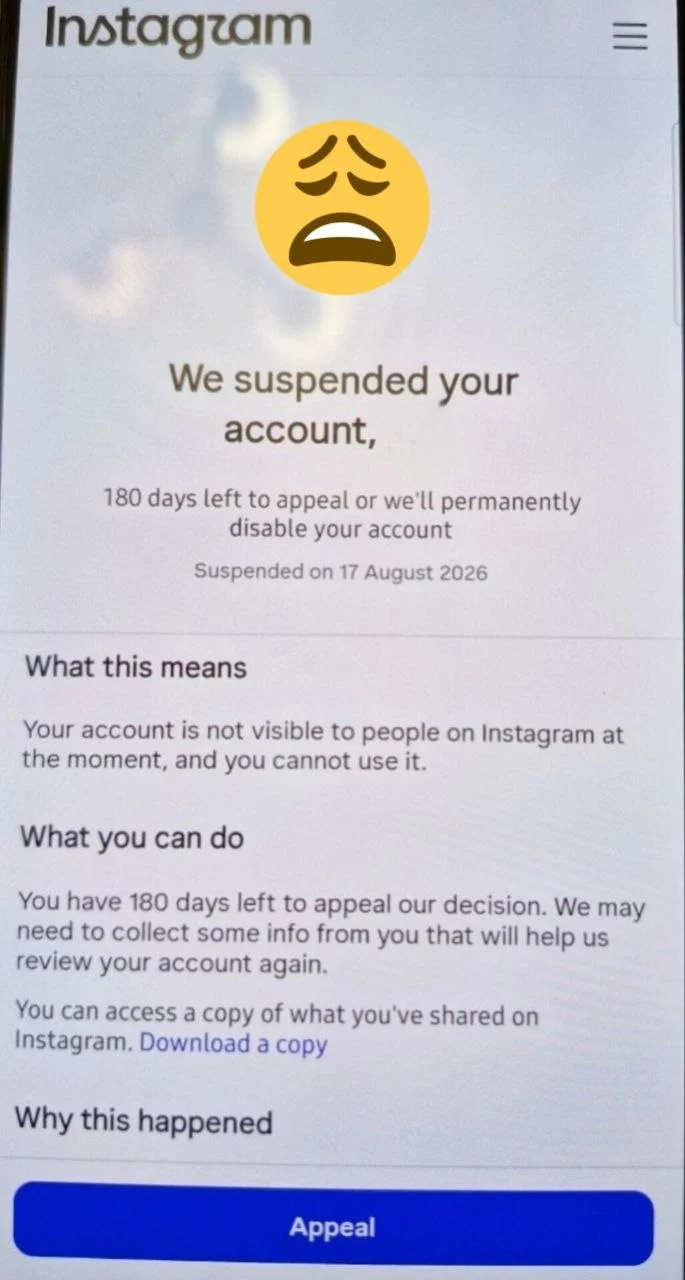
    If you encountered the “We suspended your account” notification upon opening Instagram, there is no need to panic. This is a common security procedure indicating that Instagram has temporarily halted your profile’s activity.

    As stated on the screen, you have 180 days to appeal the decision. Taking prompt action ensures your profile is reviewed and restored before any permanent action is taken. This article provides a clear, step-by-step resolution process.

    Why Does Instagram Suspend Accounts?

    Understanding why suspensions occur helps prevent future disruptions to your account. Common triggers include:

    • Rapid IP Changes: Frequently switching VPN locations causes Instagram’s automated system to flag suspicious login attempts.
    • Automated Activity: Mass following, unfollowing, or sending repetitive direct messages within a short timeframe.
    • Policy Violations: Copyright infringement or user reports regarding posted content.

    Step-by-Step Instructions to Restore Your Account

    To submit an appeal and initiate the account verification process, perform the following steps directly on the notification screen:

    1. Tap the Appeal Button: Locate and press the blue Appeal button at the bottom of the screen.
    2. Complete Verification: Check the security reCAPTCHA box to confirm you are human, then tap Next.
    3. Confirm Contact Info: Enter the phone number or email address linked to your account to receive a security code. Input the code into the verification field.
    4. Record Video Selfie (If Requested): Instagram may prompt you to record a brief video selfie turning your head to verify your identity.

    Once submitted, your appeal will be placed under review. The review process typically takes between 24 to 48 hours.

    Strategic Growth & Security Advice for Businesses:

    Unplanned account suspensions highlight the vulnerability of relying exclusively on social media platforms for customer engagement. Establishing an independent digital asset, such as a custom Website or a dedicated Mobile Application engineered by Stinoment, ensures uninterrupted business operations and safeguards your sales channels regardless of third-party platform policies.

    Post-Recovery Security Checklist

    After successfully regaining access to your account, follow these preventive guidelines:

    • Pause high-frequency interactions (likes, comments, follows) for a few days.

    • Enable Two-Factor Authentication (2FA) in your account security settings.

    • Avoid using third-party automation software or unverified VPN networks.

  • How to Sync and Unsync Instagram Accounts with Phone Contacts

    How to Connect Your Instagram Page to Phone Contacts and Vice Versa

    Have you ever wondered how to find your real-life friends and acquaintances on Instagram without knowing their exact usernames? Or perhaps you want people saved in your phone address book to easily discover your new page. Fortunately, Instagram offers a built-in feature called Contact Syncing designed for this exact purpose.

    In this comprehensive, beginner-friendly guide, we will walk you through the exact step-by-step process of connecting your Instagram page to your phone contacts and how to disconnect it whenever you want. We will also examine the pros and cons of enabling this feature for personal and business accounts.

    Pros and Cons of Syncing Instagram with Phone Contacts

    Before enabling contact syncing, it is essential to understand how it impacts your profile visibility and privacy. While it offers several convenient advantages, it may not be suitable for every user.

    The Advantages (Pros)

    • Quick Friend Discovery: Automatically locate family members, colleagues, and friends who are already active on Instagram.
    • Faster Initial Growth: Ideal for new personal accounts seeking an immediate boost in genuine followers from their existing network.
    • Tailored Recommendations: Helps Instagram suggest content and mutual connections that align closely with your real-world social circle.

    The Disadvantages & Privacy Concerns (Cons)

    • Two-Way Visibility: When you connect contacts, your profile is also recommended to everyone in your phone book under Suggested for You.
    • Privacy Risks: Unwanted contacts, acquaintances, or former colleagues will be notified or suggested to follow your profile.
    • Boundary Issues: It merges personal relationships with professional or private accounts, which may distort your audience demographics if you run a niche page.

    Step-by-Step Guide to Connecting Instagram to Phone Contacts

    To easily sync your phone address book with your Instagram account, follow these simple steps carefully:

    1. Open Your Profile: Launch the Instagram app and tap your profile picture icon in the bottom right corner.
    2. Access the Menu: Tap the three horizontal lines (hamburger menu) in the top right corner of your screen.
    3. Navigate to Accounts Center: Select Accounts Center from the settings menu.
    4. Go to Your Information: Tap on Your information and permissions.
    5. Select Contact Uploading: Choose Upload contacts from the options list.
    6. Enable Syncing: Select your account and toggle ON Connect contacts. Grant phone permissions if prompted.

    How to Disconnect Instagram from Phone Contacts

    If you previously enabled this setting and now wish to revoke Instagram’s access to your address book, follow these quick steps:

    Disabling Steps:

    1. Return to Accounts Center > Your information and permissions > Upload contacts in your Instagram app.

    2. Toggle OFF the Connect contacts switch and confirm your choice.

    3. Open your smartphone Settings > Apps > Instagram > Permissions and set Contacts access to Deny.

    Strategic Advice for Digital Growth and Business Security

    Syncing contacts is a convenient method for finding personal connections, but relying solely on social media platforms for business growth carries inherent risks. Social networks serve as excellent initial marketing windows, yet algorithm shifts or account restrictions can suddenly disrupt your customer reach.

    To build a truly sustainable and resilient brand, businesses require a permanent digital asset that they fully own. Developing a custom Website or dedicated Mobile Application ensures that your customer base remains secure and accessible around the clock.

    By partnering with digital engineering experts like Stinoment (Stinoment.com), you can transition your business from social media dependency to an independent, robust 24/7 sales engine through custom web and mobile app development.

  • How to Link Instagram to Facebook: A Complete Step-by-Step Guide

    Connecting your Instagram account to Facebook is one of the most effective ways to streamline your social media presence. Since both platforms operate under Meta, linking them unlocks powerful features designed for account security, cross-platform posting, and unified account management. This comprehensive guide details the key advantages of connecting your accounts and provides a simple step-by-step walkthrough.

    Key Benefits of Linking Instagram to Facebook

    Linking your profiles offers significant practical benefits that enhance your overall digital workflow:

    1. Simplified Account Recovery: If you ever forget your Instagram credentials or get logged out, a connected Facebook account provides an immediate alternative login method, ensuring you never lose access to your audience.

    2. Effortless Cross-Posting: You can set your Instagram posts, stories, and reels to automatically publish on your Facebook profile or page simultaneously, saving time and expanding your content reach.

    3. Unified Inbox Management: Connecting accounts allows you to view and respond to messages, direct inquiries, and comments from both platforms within a single inbox.

    4. Professional Advertising & Analytics: Linking to Facebook is required to access advanced tools like Meta Business Suite, enabling granular audience analytics and official ad campaigns.

    Strategic Advice for Business Growth:

    While linking social channels enhances operational efficiency, depending solely on third-party platforms carries inherent risk. To establish permanent brand ownership and uninterrupted sales infrastructure, developing a Custom Website or a dedicated Mobile Application through Stinoment serves as the essential foundation for long-term digital stability.

    Step-by-Step Guide: How to Link Instagram to Facebook

    Connecting your accounts takes only a few moments. Follow these straightforward steps directly within the Instagram app:

    Step 1: Open the Instagram app and navigate to your Profile page (tap your profile icon in the bottom right corner).

    Step 2: Tap the three horizontal lines (Menu icon) in the top right corner.

    Step 3: Select Accounts Center at the top of the menu.

    Step 4: Tap on Accounts, then choose Add accounts.

    Step 5: Select Add Facebook account. Enter your Facebook login credentials when prompted.

    Step 6: Confirm the prompt to complete the account linking process.

    How to Enable Automatic Content Sharing

    Once your accounts are linked, manage your sharing preferences by navigating to Accounts Center > Connected experiences > Sharing across profiles. Here, you can toggle automatic cross-posting for Instagram Stories, Posts, and Reels.

    How to Unlink Instagram and Facebook

    If you ever need to disconnect your accounts, simply navigate to Settings > Accounts Center > Accounts. Tap the Remove button next to your Facebook account and confirm your selection.

    Conclusion

    Connecting your Instagram and Facebook profiles provides immediate security advantages, simplifies content distribution, and enables essential management tools. Taking a few minutes to connect your accounts ensures a more secure and efficient social media experience.

  • How to Log In to Instagram When You Forgot Password, Email, and Phone Number

    Switching to a new smartphone is exciting, but getting locked out of your Instagram account because you forgot your password can be frustrating. Fortunately, Instagram provides several recovery paths. This guide breaks down every scenario step-by-step in plain language so you can regain access quickly.

    Step 1: Check Your Saved Passwords First

    Before attempting complex recovery steps, check if your phone automatically saved your login details.

    On iPhone: Go to Settings > Passwords and search for Instagram.

    On Android: Go to Settings > Google > Manage your Google Account > Security tab, and scroll down to Password Manager.

    Scenario 1: You Have Access to Your Registered Email or Phone Number

    This is the most straightforward recovery process:

    1. Open Instagram and tap Forgot password? (or Get help logging in).

    2. Enter your Username, Email address, or Phone number, then tap Next.

    3. Choose whether you want to receive the reset link via SMS or Email.

    4. Open the link or enter the code sent to you and create a new password.

    Scenario 2: You Don’t Remember Which Email or Phone is Linked

    If you are unsure which email or phone number was linked to your account, ask a friend to visit your profile and check the About this account section for hints regarding your email or phone digits.

    Additionally, search for the keyword “Instagram” across all your personal email inboxes and SMS logs to locate previous notification messages from Meta.

    Strategic Advice for Business Owners:

    Relying solely on a single social media platform creates operational risk. Account lockouts or policy updates can disrupt your communication with customers. Building a dedicated Custom Website or a Mobile Application through Stinoment establishes an independent sales infrastructure, ensuring uninterrupted access to your client base regardless of third-party account issues.

    Scenario 3: You Have Lost Access to Both Email and Phone Number

    If you no longer own the registered phone number or lost access to your email account, follow Meta’s advanced identity verification workflow:

    1. On the login screen, tap Forgot password? and enter your username.

    2. Tap Can’t reset your password? at the bottom.

    3. Select Try another way.

    Option A: Your Profile Contains Photos of You (Video Selfie Verification)

    Choose Yes, I have a photo of myself in my account. Provide an accessible email address. Instagram will request a short video selfie (turning your head in specified directions). Facial recognition technology will match your video with your posted photos and send a password reset link upon verification.

    Option B: Profile Without Personal Photos

    Choose No, I do not have a photo of myself. You will be directed to an inquiry form where you must detail your account creation context for manual review.

    Scenario 4: Log In via Linked Facebook Account

    If your Instagram profile was previously linked to a Facebook account, select Log in with Facebook on the login screen. Authenticating through Facebook allows immediate access, after which you can update your Instagram password from the settings menu.

    Crucial Post-Recovery Security Steps

    Once back inside your account, secure your profile immediately:

    • Navigate to Settings > Accounts Center > Personal details and update your email and phone number.

    • Enable Two-Factor Authentication (2FA) and safely store your Backup Codes.

  • How to Add WhatsApp, Email, and Website Buttons to Instagram Bio

    When a potential customer arrives at your Instagram profile, friction-free communication is essential. If contacting your business requires manual effort, users quickly drop off. Adding dedicated action buttons for WhatsApp, Email, Phone, and Website links converts profile visitors into active business leads with a single tap. This guide provides step-by-step instructions to configure contact buttons on your profile.

    Step-by-Step Guide: How to Add WhatsApp, Email, and Website Buttons to Instagram

    Section 1: Mandatory Prerequisite – Switching to a Professional Profile

    Standard personal Instagram accounts do not support actionable contact buttons. To enable these features, your account must first be converted to a Professional profile (Business or Creator).

    To perform this transition, navigate to your profile and tap the hamburger menu icon (three lines) at the top right corner. Select Settings and privacy, scroll down to Account type and tools, select Switch to professional account, and follow the setup prompts to completion.

    Section 2: Configuring WhatsApp, Email, and Phone Contact Buttons

    Once your professional profile is active, follow these precise steps on your mobile application:

    Step 1: Tap your profile picture at the bottom right corner to view your main profile layout.

    Step 2: Tap the gray Edit Profile button located directly underneath your bio section.

    Step 3: Scroll down the menu options and tap on Contact Options.

    Step 4: Input your commercial details into the designated fields: Business Email, Phone Number (Call/Text), and WhatsApp Business number.

    Step 5: Ensure the Display Contact Info toggle is switched on. Tap the checkmark icon in the top right corner to save and publish your contact buttons.

    Automate Commercial Operations Beyond Social Channels: Contact buttons streamline initial inquiry messaging, but handling customer inquiries manually through chat platforms creates operational bottlenecks as order volume increases. Transitioning your customer journey to a dedicated digital asset prevents missed sales opportunities and secures your commercial data. The software engineering team at Stinoment (Stinoment.com) designs custom Websites and scalable Mobile Applications equipped with automated checkout systems and integrated payment gateways.

    Section 3: Adding Website Links to Your Profile Bio

    Integrating a direct website link within your Instagram profile bio establishes commercial credibility and directs traffic straight into your online sales channels.

    To insert your domain link, return to the Edit Profile menu and select the Links field.

    Tap Add External Link, paste your exact website URL in the designated field, assign a descriptive Title (e.g., Visit Official Website), and tap save to apply the link to your profile bio.

    Operational Verification: After setting up your contact options, use an alternate Instagram account to tap each button and verify that your WhatsApp numbers, call options, and domain links function correctly.

  • Instagram Creator vs. Business Account: Which One Is Better for Engagement?

    When switching from a personal Instagram profile to a professional setup, users are presented with two primary choices: a Creator Account or a Business Account. A common debate among brand managers is whether account type influences engagement metrics or reach. This guide breaks down the practical differences between both account types to help you select the optimal configuration for your digital growth strategy.

    Instagram Creator vs. Business Account: Which Drives Better Engagement?

    Section 1: What Is an Instagram Creator Account?

    An Instagram Creator Account is specifically tailored for influencers, public figures, content producers, and artists. Its core architecture focuses on simplifying audience building and media distribution.

    A primary advantage of the Creator profile is unrestricted access to the full Instagram Audio Library, including trending commercial tracks. Leveraging viral soundscapes significantly enhances content discoverability within Reels feeds.

    Additionally, Creator accounts offer streamlined direct messaging with multi-tab inbox organization and deliver precise daily metrics regarding follower gain and loss trends.

    Section 2: What Is an Instagram Business Account?

    An Instagram Business Account is designed for commercial entities, retail brands, e-commerce stores, and local service providers. It equips accounts with operational features to convert viewers into paying clients.

    Business profiles allow integration of direct action buttons, including Click-to-Call, Email, Physical Directions, and Appointment Booking. These interactive elements eliminate conversion friction for potential customers.

    Furthermore, Business accounts enable integration with third-party CRM tools and automated response software, though commercial copyright policies somewhat restrict access to mainstream copyrighted audio tracks.

    Secure Your Commercial Foundation Beyond Social Media: While selecting between Creator and Business accounts optimizes your Instagram strategy, relying solely on third-party platforms presents operational risks from algorithm updates or policy enforcement. To establish permanent digital ownership and a reliable sales funnel, the development team at Stinoment (Stinoment.com) builds enterprise-grade Websites and customized Mobile Applications designed to turn casual social traffic into long-term commercial revenue.

    Section 3: Which Account Type Yields Higher Engagement?

    A persistent industry myth suggests that Instagram artificially throttles organic reach for Business accounts to force ad spending. However, Instagram official documentation confirms algorithm neutrality regardless of professional account designation.

    In practice, Creator accounts frequently register higher organic engagement rates on Reels. This performance differential is largely driven by access to trending music tracks, which perform better in algorithm recommendation feeds.

    Conversely, Business accounts achieve higher commercial conversion rates. Users interacting with a Business profile typically exhibit higher purchase intent, where dedicated contact buttons accelerate lead generation.

    Strategic Takeaway: Choose a Creator Account if your core objective is viral reach, personal branding, and media creation. Opt for a Business Account if you operate an e-commerce store or service enterprise requiring structured customer contact points.

  • Difference Between Reach and Impressions on Instagram: Which Matters More?

    When reviewing social media analytics, two core metrics frequently appear: Reach and Impressions. While many people confuse these terms, they measure distinctly different aspects of your content performance. Understanding this distinction is essential for accurately evaluating your audience growth and content resonance.

    What Is the Difference Between Reach and Impressions?

    Section 1: Understanding Reach

    In simple terms, Reach represents the number of unique individual users who have viewed your content. It measures how many distinct human beings your post reached.

    For example, if 5 unique users view your post, your Reach metric is exactly 5. Even if one of those users returns to view the post 10 separate times, the Reach count remains 5 because it tracks individual people rather than views.

    Section 2: Understanding Impressions

    Conversely, Impressions count the total number of times your content was displayed on user screens, regardless of whether it was viewed by the same person multiple times.

    If 1 person displays your post 3 times, your Reach is 1, but your Impressions metric is 3. Consequently, Impressions are always equal to or higher than Reach because users can view the same content repeatedly.

    Convert Social Media Reach into Permanent Commercial Assets: Measuring reach and impressions provides valuable insights into audience capture, but social platform algorithms fluctuate continuously. To build an independent digital destination that converts temporary visual impressions into loyal, recurring business revenue, the software team at Stinoment (Stinoment.com) delivers custom Website Design and high-performance Mobile Application Development tailored to your corporate goals.

    Section 3: Which Metric Matters More for Analysis?

    Both metrics offer vital insights, but their value depends on your primary marketing objective:

    1. For Brand Awareness and Audience Discovery: Focus on Reach. Higher reach indicates that your brand is expanding its footprint and attracting new potential customers.

    2. For Content Engagement and Repeat Interest: Focus on Impressions. A significantly higher Impression-to-Reach ratio proves that viewers find your content valuable enough to revisit multiple times.

    Final Takeaway: Reach measures unique people reached, while Impressions measure total display instances. Analyzing both together gives you the complete picture of your digital performance!