Category: Emergency

  • Avoiding Unofficial App Logins: The Ultimate Key to Protecting Your Instagram Account

    Why Unfollower and Analytics Apps Can Get Your Instagram Account Disabled

    Many Instagram users are curious to know who unfollowed them, who views their profile, or how their page is performing statistically. To find these details, people often download third-party tools such as unfollower trackers, ghost follower cleaners, or auto-liker bots. However, logging into these apps can put your entire profile at risk of permanent disabling.

    Meta (Instagram’s parent company) explicitly states in its terms of service that using third-party apps that require your Instagram login credentials is strictly prohibited. Instagram’s automated security systems actively detect unauthorized logins from unapproved servers, often resulting in temporary locks or permanent account suspensions.

    Which Apps Pose the Highest Risk to Your Account?

    Any application or website that prompts you to enter your Instagram username and password poses a severe threat to your profile security. The most common risky app categories include:

    • Unfollower and Follower Trackers: Applications designed to list accounts that have unfollowed you or haven’t followed you back.
    • Profile Viewer & Stalker Tools: Apps claiming to show who recently visited or interacted with your profile.
    • Automated Engagement Bots: Tools that send mass direct messages, auto-comment, or auto-follow/unfollow on your behalf.
    • Uncertified Third-Party Analytics Tools: Advanced reporting tools that access Instagram’s API without official Meta authorization.

    When you submit your login credentials into these platforms, your sensitive password data is stored on external, unverified servers. This not only violates platform guidelines but also exposes your account to security breaches and unauthorized access.

    Strategic Growth & Security Advice for Businesses:

    Unplanned account disablements highlight the vulnerability of relying exclusively on social media platforms for customer engagement. Establishing an independent digital infrastructure, such as a custom Website or a dedicated Mobile Application engineered by Stinoment, ensures uninterrupted operations and protects your sales pipeline from third-party policy changes.

    Are Apps That Do Not Require Login Safe?

    Simply put, tools and websites that do not request your Instagram username or password are entirely safe to use.

    Because these web tools operate purely on publicly accessible data, they have no direct authorization to access your private account token. As long as an app does not ask you to log in with your Instagram account, there is no risk of account restriction or suspension.

    How to Protect Your Account If You Have Already Logged Into an App

    If you currently have an unfollower app installed or have logged into one in the past, take these steps immediately to secure your account:

    1. Log out immediately from the third-party application and uninstall it from your device.
    2. Change your Instagram password immediately. Changing your password revokes all active session tokens associated with external apps.
    3. Enable Two-Factor Authentication (2FA) in Instagram’s security settings for an extra layer of protection.
    4. Navigate to Instagram Settings > Websites and Apps, and revoke access for any unapproved active applications.
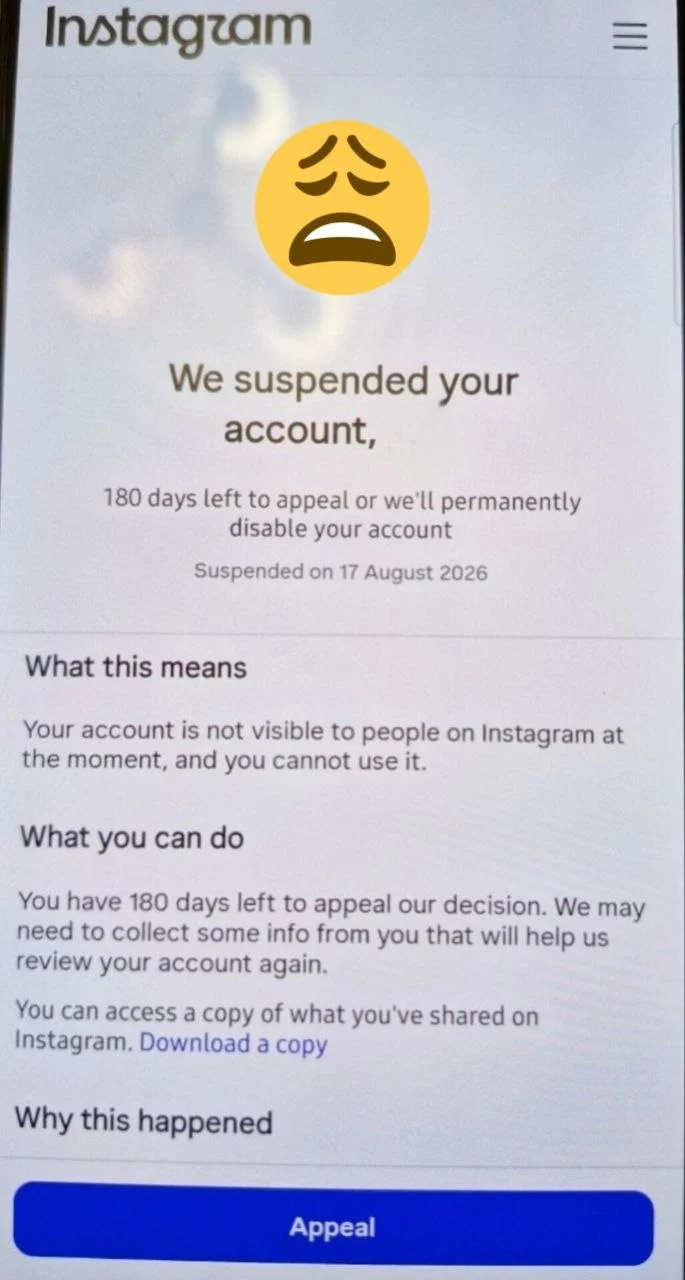
  • How to Fix “We Suspended Your Account” Error on Instagram:

    Simple Guide to Fixing “We Suspended Your Account” on Instagram

    If you encountered the “We suspended your account” notification upon opening Instagram, there is no need to panic. This is a common security procedure indicating that Instagram has temporarily halted your profile’s activity.

    As stated on the screen, you have 180 days to appeal the decision. Taking prompt action ensures your profile is reviewed and restored before any permanent action is taken. This article provides a clear, step-by-step resolution process.

    Why Does Instagram Suspend Accounts?

    Understanding why suspensions occur helps prevent future disruptions to your account. Common triggers include:

    • Rapid IP Changes: Frequently switching VPN locations causes Instagram’s automated system to flag suspicious login attempts.
    • Automated Activity: Mass following, unfollowing, or sending repetitive direct messages within a short timeframe.
    • Policy Violations: Copyright infringement or user reports regarding posted content.

    Step-by-Step Instructions to Restore Your Account

    To submit an appeal and initiate the account verification process, perform the following steps directly on the notification screen:

    1. Tap the Appeal Button: Locate and press the blue Appeal button at the bottom of the screen.
    2. Complete Verification: Check the security reCAPTCHA box to confirm you are human, then tap Next.
    3. Confirm Contact Info: Enter the phone number or email address linked to your account to receive a security code. Input the code into the verification field.
    4. Record Video Selfie (If Requested): Instagram may prompt you to record a brief video selfie turning your head to verify your identity.

    Once submitted, your appeal will be placed under review. The review process typically takes between 24 to 48 hours.

    Strategic Growth & Security Advice for Businesses:

    Unplanned account suspensions highlight the vulnerability of relying exclusively on social media platforms for customer engagement. Establishing an independent digital asset, such as a custom Website or a dedicated Mobile Application engineered by Stinoment, ensures uninterrupted business operations and safeguards your sales channels regardless of third-party platform policies.

    Post-Recovery Security Checklist

    After successfully regaining access to your account, follow these preventive guidelines:

    • Pause high-frequency interactions (likes, comments, follows) for a few days.

    • Enable Two-Factor Authentication (2FA) in your account security settings.

    • Avoid using third-party automation software or unverified VPN networks.

  • How to Log In to Instagram When You Forgot Password, Email, and Phone Number

    Switching to a new smartphone is exciting, but getting locked out of your Instagram account because you forgot your password can be frustrating. Fortunately, Instagram provides several recovery paths. This guide breaks down every scenario step-by-step in plain language so you can regain access quickly.

    Step 1: Check Your Saved Passwords First

    Before attempting complex recovery steps, check if your phone automatically saved your login details.

    On iPhone: Go to Settings > Passwords and search for Instagram.

    On Android: Go to Settings > Google > Manage your Google Account > Security tab, and scroll down to Password Manager.

    Scenario 1: You Have Access to Your Registered Email or Phone Number

    This is the most straightforward recovery process:

    1. Open Instagram and tap Forgot password? (or Get help logging in).

    2. Enter your Username, Email address, or Phone number, then tap Next.

    3. Choose whether you want to receive the reset link via SMS or Email.

    4. Open the link or enter the code sent to you and create a new password.

    Scenario 2: You Don’t Remember Which Email or Phone is Linked

    If you are unsure which email or phone number was linked to your account, ask a friend to visit your profile and check the About this account section for hints regarding your email or phone digits.

    Additionally, search for the keyword “Instagram” across all your personal email inboxes and SMS logs to locate previous notification messages from Meta.

    Strategic Advice for Business Owners:

    Relying solely on a single social media platform creates operational risk. Account lockouts or policy updates can disrupt your communication with customers. Building a dedicated Custom Website or a Mobile Application through Stinoment establishes an independent sales infrastructure, ensuring uninterrupted access to your client base regardless of third-party account issues.

    Scenario 3: You Have Lost Access to Both Email and Phone Number

    If you no longer own the registered phone number or lost access to your email account, follow Meta’s advanced identity verification workflow:

    1. On the login screen, tap Forgot password? and enter your username.

    2. Tap Can’t reset your password? at the bottom.

    3. Select Try another way.

    Option A: Your Profile Contains Photos of You (Video Selfie Verification)

    Choose Yes, I have a photo of myself in my account. Provide an accessible email address. Instagram will request a short video selfie (turning your head in specified directions). Facial recognition technology will match your video with your posted photos and send a password reset link upon verification.

    Option B: Profile Without Personal Photos

    Choose No, I do not have a photo of myself. You will be directed to an inquiry form where you must detail your account creation context for manual review.

    Scenario 4: Log In via Linked Facebook Account

    If your Instagram profile was previously linked to a Facebook account, select Log in with Facebook on the login screen. Authenticating through Facebook allows immediate access, after which you can update your Instagram password from the settings menu.

    Crucial Post-Recovery Security Steps

    Once back inside your account, secure your profile immediately:

    • Navigate to Settings > Accounts Center > Personal details and update your email and phone number.

    • Enable Two-Factor Authentication (2FA) and safely store your Backup Codes.