Category: Instagram Academy

  • Complete Guide to Posting Photos, Reels, and Carousels on Instagram

    Publishing engaging and high-quality content on Instagram is the most effective way to attract audience attention and grow your presence. In this chapter, you will learn how to select photos and videos from your gallery, adjust their aspect ratios, add captions and music, and utilize advanced settings like drafts and scheduling to optimize your posts.

    Chapter 6: Publishing Photos and Videos (Posts, Reels, and Albums)

    Lesson 3: Understanding Post Types and Media Selection

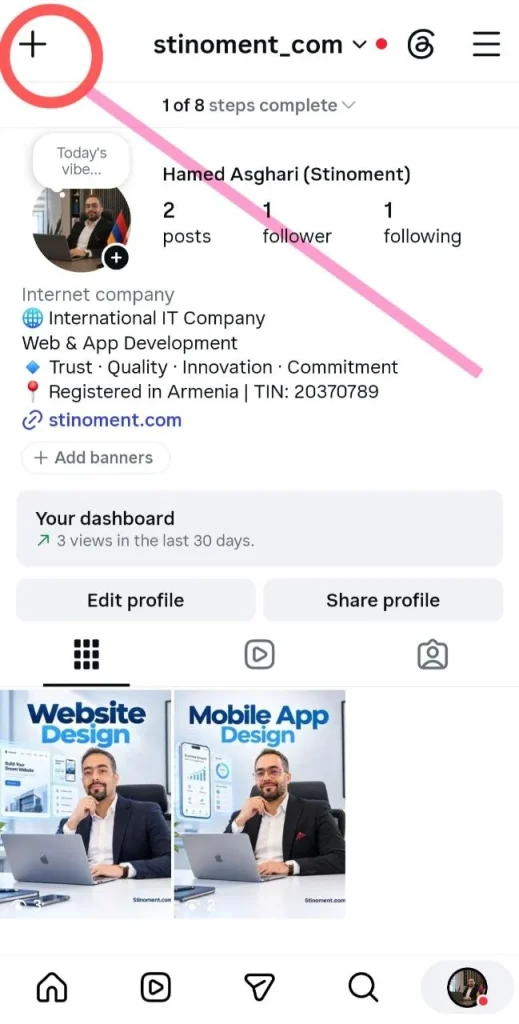
    To begin publishing content, simply tap the plus icon (+) located at the top or bottom navigation bar. Instagram offers multiple content formats, and understanding their differences ensures you always choose the best medium for your message.
    Single Photo Posts, Carousel Albums, and Reels Videos

    A Single Photo Post displays one static image. However, if you want to share a series of images or videos, choose a Carousel Album, allowing users to swipe left to view up to 20 media items. Short vertical videos are automatically categorized as Reels, which receive maximum reach on the Explore page.

    Selecting Media from Gallery and Cropping Aspect Ratios

    Tapping the plus button opens your phone gallery. To choose multiple items for an album, tap the Select Multiple icon. To adjust the frame aspect ratio, tap the Crop icon (two angles) in the bottom-left corner of the preview area to switch between square (1:1) and vertical (4:5) display modes.

    Lesson 7: Tagging Options and Publishing Features

    After selecting your media and tapping Next, you will reach the final share settings screen. This section provides options to enrich your post for both viewers and Instagram algorithms.

    Writing Captions and Adding Emojis

    At the top of this menu, locate the Write a caption text field. Provide a detailed description of your post here. Use relevant Emojis to enhance visual appeal and break up long text blocks, encouraging users to spend more time reading your post.

    Tagging People and Inviting Collaborators

    To mention accounts featured in your post, tap Tag People. If you created joint content with another account, use the Invite Collaborator feature inside this menu. Once accepted, the post will simultaneously appear on both profiles.

    Adding Locations and Background Music

    Specify your location or business address by tapping Add Location and choosing from the list. To make static photo posts more engaging, tap Add Music to embed a background audio track from the Instagram music library.

    Selecting Relevant Topics for Enhanced Reach

    Locate the Add Topics option further down the page. Select up to 3 relevant categories matching your content focus. This helps Instagram accurately serve your content to users interested in those specific niches.

    Expand Your Business Online: If you want to complement your Instagram presence with a professional digital infrastructure, the team at Stinoment (Stinoment.com) specializes in custom Website Design and Mobile Application Development to elevate your brand.

    Lesson 8: Drafts and Pre-Publishing Settings

    Before tapping share, Instagram offers pre-publishing tools to streamline your workflow and control post engagement settings effectively.

    Saving Posts to Drafts and Retrieving Them Later

    If your post is prepared but not ready to go live, tap the back arrow in the top corner. When prompted, tap Save Draft. To access your saved work later, open the creation screen via the plus (+) button; a dedicated Drafts tab will appear above your gallery.

    Disabling Comments and Hiding Like Counts

    Scroll to the bottom of the sharing screen and tap Advanced Settings. Enable Turn off commenting if you wish to close the comment section for that specific post. You can also toggle on Hide like and view counts to keep your engagement metrics private from viewers.

    Scheduling Posts for Automatic Publishing

    Inside the Advanced Settings menu, locate Schedule this post. Toggling this feature allows you to select a future date and time for Instagram to automatically publish your content without manual intervention.

    Final Tip: Combining vertical Reels formats with optimized topic tags significantly enhances your content discoverability across the Explore feed!
  • Instagram Profile Setup & Optimization Tutorial: A Guide to Bio, Links, and Highlights

    Your Instagram profile acts just like a storefront for your online presence. The more organized, appealing, and complete your profile is, the faster visitors will build trust with your page. In this chapter, you will learn how to configure your basic account details, insert essential links, and build an engaging highlight showcase for your profile.

    Chapter 2: Creating and Setting Up Your Profile

    Lesson 4: Setting Basic Info and Sharing Your Page

    To begin configuring your settings, you first need to access your main profile screen. Look at the very bottom bar of your screen and tap the circular icon at the bottom corner displaying your profile picture or a person outline. This action opens your personal profile landing page where your posts and account details reside.

    Changing Profile Photo, Name, and Bio

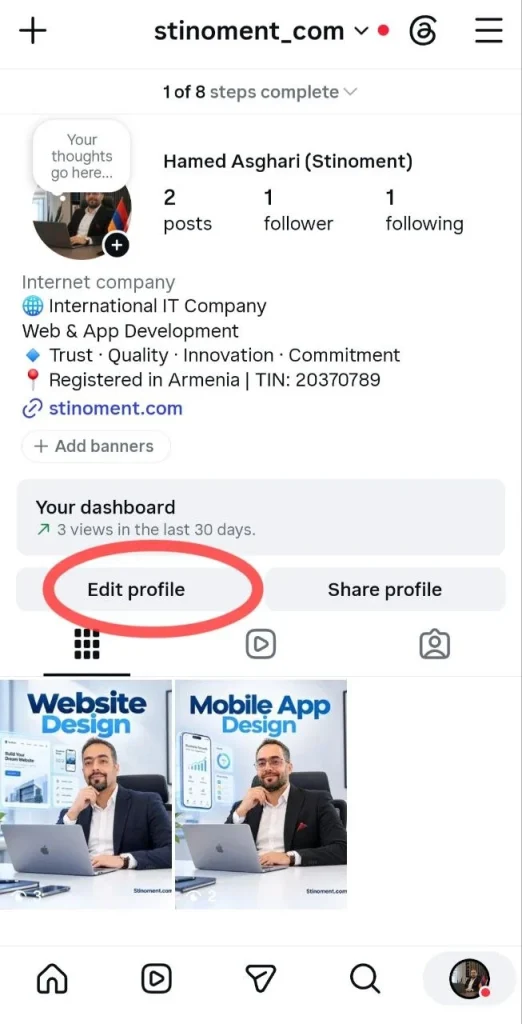
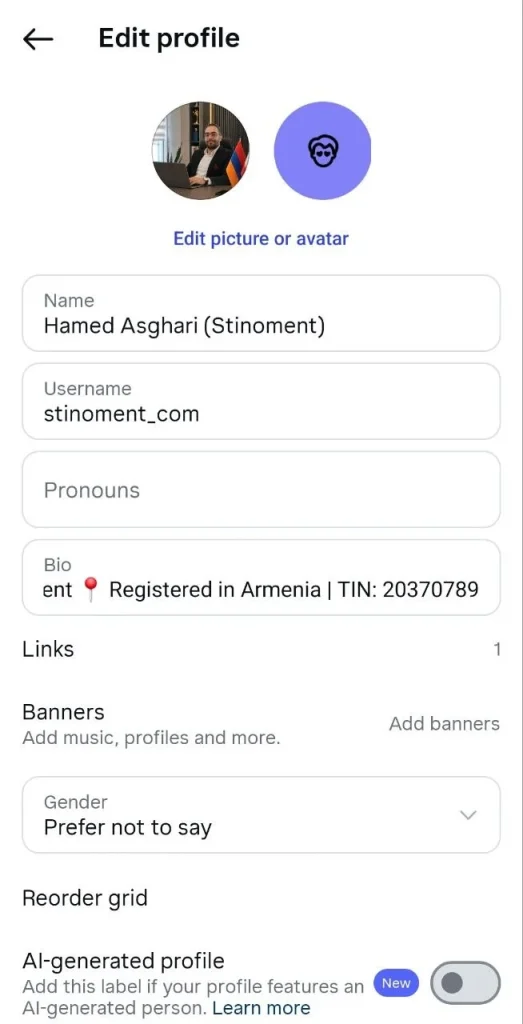
    At the top of your profile page, locate the prominent button labeled Edit Profile. Tapping this button opens the main editing menu containing all your basic information. To update your profile image, tap Edit picture or avatar and select a fresh photo directly from your device gallery.

    In the Name field, enter your full name or brand name so users can easily discover your account through search. In the Bio text box, write a concise and clear summary explaining what services you offer or what content you produce so visitors understand your page value instantly.

    Adding Links (Websites or Channels) to Your Bio

    If you own an external website, blog, or messaging channel, you can embed its destination link directly into your bio for one-tap access. To set this up, return to Edit Profile and tap the Links option. On the next screen, select Add external link.

    Enter your full web address (URL) in the first field and assign a brief descriptive title in the second field. Finally, tap the checkmark or save button at the top to display the clickable link on your profile page.

    Convert Profile Visitors into Business Sales: Directing bio traffic to a dedicated web destination yields maximum conversions. If your business requires custom Website Design or tailored Mobile Application Development to streamline sales, the expert development team at Stinoment (Stinoment.com) builds scalable digital platforms for your business growth.

    Generating QR Code and Copying Profile Link to Share

    When you want to share your profile address with friends or prospective clients, Instagram makes sharing simple. Open your main profile view and tap the Share Profile button situated right beside the edit button.

    This action displays a customized QR Code that others can instantly scan using their phone camera to open your page. Additionally, at the bottom of the same view, tap Copy Link to save your exact account URL to your clipboard for easy messaging through external apps.

    Lesson 5: Profile Showcase and Story Highlights

    Once your basic account details are configured, you can organize your content showcase. Instagram provides tools like pinning posts and organizing highlights so your most important content stays permanently visible to new visitors.

    Pinning Important Posts to Top of Profile (Pin)

    If you have key publications—such as an introduction post, service overview, or contact information—you can anchor them at the top of your feed grid. Open the specific post you wish to highlight so it displays in full view.

    Tap the three dots icon in the top right corner of the post and select Pin to your profile. This keeps the post permanently positioned at the very beginning of your feed grid. You can pin up to 3 essential posts to your profile top.

    Creating Story Highlights, Editing Titles, and Adding Covers

    Standard stories expire after 24 hours, but story highlights allow you to archive valuable story content permanently on your profile. On your main profile page beneath the edit buttons, locate the circular icon labeled New with a plus (+) sign.

    Tap this icon, select the archived stories you wish to group together, and tap Next. Type a short, clear title for the highlight (such as Reviews, FAQ, or Pricing) and tap Edit Cover to select a clean, attractive cover image for the circular highlight icon.

    Understanding Profile Navigation Tabs (Posts, Reels, and Tagged)

    Directly above your post grid on your profile page, you will notice small navigation icons that categorize your media content. The first icon on the right is the Grid icon, which displays all standard photo and video feed posts.

    The second icon is the Reels icon, which collects your short vertical Reels videos exclusively. The third icon, depicting a frame with a user outline, represents Tagged Posts—showing photos and videos published by other users where your account was tagged.

    Final Tip: Completing your bio information and organizing neat story highlights gives your account a highly professional look, allowing visitors to immediately understand your content and brand value!

  • Getting Familiar with the Main Screen and Search

    When you first install an app like Instagram on your smartphone, the variety of buttons and options can feel overwhelming. Do not worry! In this step-by-step guide, we will walk you through the essential buttons, where they are located, and what each function does so you can navigate the app effortlessly.

    Important Note Before Starting: Instagram occasionally updates its design layout. If a button appears in a slightly different position on your screen, don’t worry; the button names and core functions almost always remain the same.

    Complete Guide to Instagram Home, Search, and Reels

    Section 1: Navigating the Top and Bottom Main Menus

    When you open Instagram, the first screen you see is the Home Screen or Feed. Located at the top and bottom of this screen are several essential icons that allow you to move around the app, check notifications, and view new posts from accounts you follow.

    The Home Button (Viewing Posts)

    Look at the bottom menu bar of your phone screen. The first icon on the left or right (depending on your device language) is shaped like a small house. Tapping this Home button opens your primary feed, where you can view photos and videos published by your friends and followed accounts. Simply swipe upward on your screen to scroll through newer and older posts.

    The Heart Icon (Likes, Comments, and Follow Requests)

    Located at the top corner of the Home screen, the Heart-shaped icon serves as your account activity center. Tapping this heart allows you to see who liked your posts, left comments, or sent you a Follow Request. Checking this notification hub regularly keeps you updated on all account interactions.

    The Chat / Paper Plane Icon (Direct Messages)

    Right next to the Heart icon at the top, you will see an icon shaped like a speech bubble or paper airplane. This button takes you directly to your Direct Messages (DM) inbox. Here, you can chat privately with friends, send voice notes, share photos and videos, or forward interesting posts you find on Instagram.

    Section 2: The Search and Explore Page (Magnifying Glass)

    The Search and Explore tab is one of Instagram’s most useful discovery features. It helps you find new topics, user accounts, trending audio, and geographic locations. To access this section, look at the bottom navigation bar and tap the Magnifying Glass icon.

    Finding People by Username (Search Accounts)

    Once you tap the Magnifying Glass, locate the Search bar at the very top of the screen. Tap on the search bar and type the username or name of the person you wish to find. Select the Accounts tab beneath the search bar to filter results, then tap on the desired account to open their profile.

    Searching by Hashtags (#), Locations, and Audio

    To search for specific topics or places, use the filter tabs under the search bar. Type a topic preceded by a hashtag (#) and tap the Tags tab. To discover posts from a specific city or business, type the place name and select the Places tab. Furthermore, tapping the Audio tab lets you search for song titles and view all Reels using that sound track.

    Take Your Business Beyond Social Media: While Instagram is great for discovering audiences, having your own official digital platform builds long-term brand authority. If you want to convert social visitors into loyal customers through custom Website Design or tailored Mobile Application Development, the software specialists at Stinoment (Stinoment.com) can build the perfect platform for your brand.

    Section 3: Watching Short Videos (Reels Tab)

    Reels is Instagram’s dedicated tab for short, immersive video content. To jump straight into the Reels feed, look at the bottom navigation bar and tap the center icon shaped like a video clapperboard or play symbol.

    How to Swipe Through Reels

    Reels play in full-screen mode continuously. To advance to the next video, swipe your finger upward on the screen. If you want to return to the previous video, simply swipe downward. Navigating this feed is intuitive and seamless.

    Liking, Commenting, and Saving Audio

    Action buttons are located on the right side of every Reel. Tap the Heart icon (or double-tap the video) to like it. Tap the Speech Bubble icon to read or write comments. If you enjoy the background audio and want to use it later, tap the spinning audio icon or song title at the bottom right and select Save Audio.

    Final Tip: By mastering these basic controls, you can effortlessly browse Instagram, stay connected with friends, and enjoy exploring new content!